Connecting to the OVOC Server Manager
You can either run the OVOC Server Managerutility locally or remotely:
|
■
|
If you wish to run it remotely, then connect to the OVOC server using Secure Shell (SSH). |
|
■
|
If you wish to run it locally, then connect using the management serial port or keyboard and monitor. |
|
1.
|
Login into the OVOC server by SSH, as ‘acems’ user and enter password acems. |
|
2.
|
Switch to 'root' user and provide root password (default password is root): |
su - root
|
3.
|
Type the following command: |
# OvocServerManager
'OvocServerManager' has been renamed to 'EmsServerManager'. Both command strings can be typed in the SSH console.
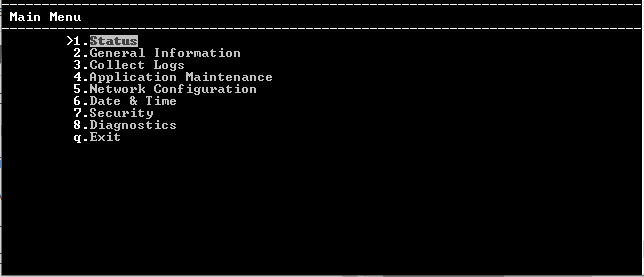
The OVOC Server Manager menu is displayed:
OVOC Server Manager Menu
|
●
|
Whenever prompted to enter Host Name, provide letters or numbers. |
|
●
|
Ensure IP addresses contain all correct digits. |
|
●
|
For menu options where reboot is required, the OVOC server automatically reboots after changes confirmation. |
|
●
|
For some of the configuration options, you are prompted to authorize the changes. There are three options: Yes, No, Quit (y,n,q). Yes implements the changes, No cancels the changes and returns you to the initial prompt for the selected menu option and Quit returns you to the previous menu. |